Campaigns set their own rates and rules. Many clips earn little or nothing. JustClip doesn't promise earnings.
Whop clipping means posting short clips for a brand's or creator's campaign on Content Rewards, the Whop-linked app where campaigns are listed, clips are submitted and approved clips are paid. Content Rewards' help page "How Content Rewards works" (read 23 Nov 2026) puts it this way: "Brands fund a campaign and write a brief, creators post clips and submit the links, and every approved clip gets paid from the campaign budget."
Neither Content Rewards nor Whop wrote this page. JustClip publishes it and makes a clipping tool. The tool comes up only in Step 4, and you don't need it for any step. The Content Rewards steps come from Content Rewards' help centre, and each ad-label setting comes from that platform's own help. Every page was read on 23 Nov 2026. Help pages change, so if a screen name here doesn't match what you see, go by the platform's page. This guide doesn't name a campaign or print rates, because each campaign's page shows its own.
Before you start: what should you have ready?
To start Whop clipping you need your own accounts on the platforms a campaign names, connected in Content Rewards, plus a campaign that accepts you and any editor. Each campaign sets its own eligibility rules.
- Your own accounts come first, and they have to be connected in Content Rewards. If you're a beginner, start here. The help page "Connect your social accounts" (dated 6 Oct 2026, read 23 Nov 2026) says: "A clip can only be submitted from an account that's connected here, in Content Rewards. Accounts linked in Whop don't count." To connect one: "Open Settings, then the Connected accounts tab", then "Press Connect account and choose the platform you post from." It adds: "Instagram must be a Business account."
- Next you need a campaign that takes you. Each campaign decides who it accepts (Step 1), and "Find and apply to a campaign" (read 23 Nov 2026) asks for one thing first: "Have at least one social account connected and verified."
- Any editor will do, so use the one you already know. Step 4 covers what the clip needs.
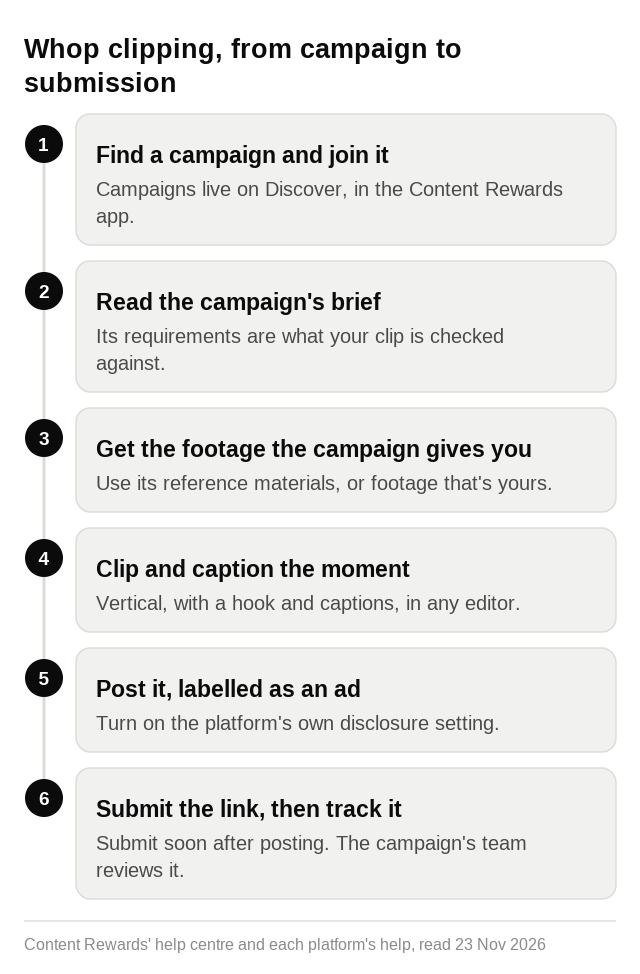
Step 1: Find a campaign on Content Rewards and join it
You find campaigns on the Discover page of the Content Rewards app. "Find and apply to a campaign" (read 23 Nov 2026) says "Campaigns live on the Discover page", where you can "Search by name, or narrow the list by platform, model and category." If you last clipped on the Whop-hosted version, read what changed in Content Rewards first.
A campaign is either open or by application. The same page says: "An open campaign lets you in straight away. An application campaign asks you a few questions first, and the brand decides." The steps, from that page:
- Open Discover, narrow the list, open a campaign and read its brief (Step 2).
- On an open campaign, press Join Campaign. "Join Campaign puts you in at once."
- On an application campaign, press Apply. "Apply opens a short form", where you "pick the account you'll post from, write why you fit, answer the brand's questions, and press Apply."
- Watch the campaign's button. It reads Application pending "while the brand decides", becomes Submit clip once the brand approves you, and reads Not eligible if it declines.
Campaigns you've joined sit under Campaigns. Some campaigns are private. "Find and apply to a campaign" says they "don't appear on Discover, and you reach them only through an invitation from the brand".
Which Whop clipping niche should you pick?
The Content Rewards help pages read for this guide list no niches, so there's no official list to pick from. The nearest thing on the pages read on 23 Nov 2026 is Discover's filter "by platform, model and category". Use these checks to choose:
- Pick footage you understand. You'll spot the moment faster in a podcast, stream or show you'd watch anyway.
- Read the brief before the pay line. The campaign's team checks each clip against the brief, so the brief decides whether a clip can be approved at all.
- Check that the campaign still has budget left. "Find and apply to a campaign" (read 23 Nov 2026) says each Discover card shows "how much budget is left". The help page "The campaign ended, paused or ran out of budget" (read 23 Nov 2026) says "Money is set aside for a clip when the campaign's team approves it, not before", and that once the budget is spent, "Submit clip goes grey and the campaign leaves Discover".
This guide doesn't cover gambling or casino streams.
Step 2: Read the campaign's rules first (each campaign sets its own)
Whop clipping rules aren't one shared list. Each campaign has its own written requirements, and those are the rules. "Find and apply to a campaign" (read 23 Nov 2026) says: "The requirements on this page are what the brand checks your clip against." Content Rewards tells brands the same from the other side. Its page "Clipping, UGC or slideshows, and what you need to supply" (read 23 Nov 2026) says: "Only rules written here count. A rule that lives in a chat or a separate document is not a valid reason to reject."
Read the brief before you clip: platform, tags, disclosure and length
Read the brief's requirements all the way through before you open an editor. Content Rewards' guide for brands, "Write a brief creators will follow" (dated 5 Sep 2026, read 23 Nov 2026), sorts a brief's rules into kinds, and the list below quotes three of its descriptions. Look for:
- Which platforms the brand accepts.
- The tags and caption. The guide files these under Caption: "The handle, the hashtag, a disclosure line if you need one."
- The disclosure wording the campaign wants, which comes on top of the platform's own ad label (Step 5).
- The length and format. Under Format, the guide lists "Orientation, length, resolution, whether sound is required."
- The footage. Under Source, it lists "Which footage they may use, and whether original filming is allowed."
- Whether a draft comes first. "Some campaigns ask to see a draft before anything is posted." On those, Submit clip takes a video file before you post. Once the draft is approved, you post the video from an account the team approved on that draft and submit the live link as in Step 6, and "the posted clip is reviewed again" ("Submit a video", read 23 Nov 2026).
- The timing. Content Rewards sets how soon after posting the link has to go in (Step 6).
Step 3: Get the footage the campaign gives you
The campaign supplies the footage on its own page. Content Rewards' page for brands, "Clipping, UGC or slideshows, and what you need to supply" (read 23 Nov 2026), describes clipping to brands as cutting "your existing long form content into short clips". It has the brand add "Reference materials on the campaign: links, videos, images and brand assets", and says "A link to a shared folder or a playlist counts as a link". Open the reference materials and work from those.
The footage is licensed for that one campaign. The same page tells brands: "Footage you give creators is licensed to them only to make clips for your campaign." Another page for brands, "Who owns the clips" (read 23 Nov 2026), says "The creator is responsible for clearing anything in the clip that isn't yours or theirs, music included" ("yours" means the brand's). So keep a campaign's footage to that campaign, and leave out music or anything else you haven't cleared.
Your own streams and videos, or footage you're allowed to clip (the creator's campaign or their written OK).
Step 4: Clip and caption the moment in any editor
Any editor works, as long as the clip meets the brief. Get these right before you post:
- Make it vertical. Frame the clip for a phone screen, in the orientation the brief names.
- Start with a hook. Open on the moment itself, so the first seconds show why it's worth watching.
- Add captions on screen, then write the post's caption with the handle and hashtags the brief asks for.
Where does JustClip fit? (optional)
JustClip is optional and covers this step only. You paste a Twitch, Kick or YouTube link, or upload a file. As of 23 Nov 2026, Pro and Studio accounts can use YouTube links up to a monthly allowance, pack-only accounts can use them on bought credits, and on Clipper you upload the video as a file. You get captioned vertical clips with written hooks, ranked best first, each with a "why this clip" note. There's also a multi-track editor to change any clip.
Clipping uses credits, counted by the minute of footage, and a YouTube link costs more credits a minute than an upload or a Twitch or Kick link. You don't need JustClip to join a campaign or to get paid, and nothing here promises approval, views or reach. Whichever editor you use, the step ends the same way: export the clip, then post it yourself.
Step 5: Post on your own account, labelled as an ad
Post from an account you connected in Content Rewards, and turn on the platform's own ad label. TikTok, Instagram and YouTube each have a setting for it. None of the three help pages, read on 23 Nov 2026, mentions clipping campaigns by name, so each setting is named here the way its own page names it.
| Platform | What its help calls the setting | Where you turn it on | What the post shows |
|---|---|---|---|
| TikTok | The content disclosure setting | On the post screen: Content disclosure and ads | A Paid partnership label |
| The paid partnership label | On a reel: More options, then Add paid partnership label | The paid partnership label, without the brand's name until the brand approves you | |
| YouTube | The paid promotion button | In the video's details, under "Paid Promotion" | "a disclosure label that appears at the beginning of your video" |
TikTok calls it the content disclosure setting. TikTok Support's "Promoting a brand, product, or service" (read 23 Nov 2026) says: "When posting content that promotes a brand, product, or service on TikTok, you must turn on the content disclosure setting." That includes "Promoting a third-party brand or its products or services in exchange for payment or any other incentive." On the post screen, tap Content disclosure and ads, turn on Disclose commercial content, choose Branded content, tap Save, then tap Continue. If you're not part of TikTok One, the page says to tap More options first. Set it before you post, because once a post is published, TikTok says, "it will be labeled as Paid partnership or Promotional content and can't be changed." TikTok also says "If you don't display the proper disclosure, we may remove or restrict your posts", and that the setting "won't affect the distribution of your post".
Instagram calls it the paid partnership label. Instagram Help Center's "How to use the paid partnership label to tag organic branded content on Instagram" (read 23 Nov 2026) says its "branded content policies require that you use the paid partnership label to tag the brand you are working with." On a reel, tap More options, tap Add paid partnership label, turn the toggle on and add the brand. Two conditions come first: "Enable branded content on Instagram to use the paid partnership label" and "Your brand partner must have a professional account on Instagram." The first time you tag a brand, "a request is sent to the brand". Until it approves you, the label shows without the brand's name.
YouTube calls it the paid promotion button. YouTube Help's "Add branded content restrictions & disclosure labels" (read 23 Nov 2026) says that if a video features "branded content, sponsorships, endorsements, or other commercial relationships", "you have to let YouTube know by selecting the paid promotion button in your video details." On a computer, the page's steps for a new upload include: under "Paid Promotion", select "Yes, my video includes branded content". The page says selecting the paid promotion button "adds a disclosure label that appears at the beginning of your video." The tab read for this guide gives computer steps only, so there are no phone steps for Shorts here.
The brief says what the campaign also wants in the caption. Where the brief and the platform both ask, do both. YouTube's page says it "is not legal advice", and this guide isn't either.
Step 6: Submit the link soon after posting and track approval
Submit the post's link in Content Rewards straight after you post. The campaign's own team reviews it from there. Content Rewards' "Submit a video" (read 23 Nov 2026) states the window as its own rule: you "paste the link within 30 minutes of posting", and the post "has to be less than 30 minutes old when you submit it". The post also has to be public.
- "Open the campaign and press Submit clip."
- Paste the link to your post. To get it, "open the post on the platform and use its Share button".
- Tick the box that says you've read the requirements, then press Submit clip.
Content Rewards runs three checks on every link, and "Submit a video" lists them: the post came from one of your linked accounts, it hasn't already been submitted anywhere, and it was posted inside the window. The second is strict: "A post can only be submitted once, ever, to any campaign." That covers a post sent to the wrong campaign too.
After that you wait for the campaign's team. The clip sits on your Submissions page under Pending "until the campaign's team reviews it; nothing is approved on its own" ("Submit a video"). The help page "Approval and review" (read 23 Nov 2026) says "Content Rewards does not approve clips" and "There's no fixed time on a review". The Submissions page sorts clips into three tabs: Approved, Pending and Rejected.
A rejected clip shows the team's reason on its card, and "Approval and review" says "any rejection can be appealed once in the app". For the usual reasons and what to do next, see when a submission gets rejected.
As for how payouts work, approved clips are paid from the campaign's budget into your Content Rewards Balance, and you withdraw from there to your Whop Balance ("How Content Rewards works", read 23 Nov 2026).
The before-you-post checklist (copy it)
Run this checklist on every clip before you publish it:
- The platform is one the brief accepts.
- The caption has the tags, handle and wording the brief asks for.
- Disclosure is on: the platform's own ad-label setting, plus whatever the brief asks for.
- The length and format are inside what the brief allows.
- The account you're posting from is connected in Content Rewards.
- You're ready to submit the link soon after posting.
Campaigns set their own rates and rules. Many clips earn little or nothing. JustClip doesn't promise earnings.