Viewers clip other people's streams only with Kick's own Clip button, under Kick's rules. JustClip is for your own streams and videos, or footage you're allowed to clip: the creator's campaign or their written OK.
This guide doesn't cover gambling or casino streams.
How do you clip on Kick? The Clip button and the C key, step by step (Kick's help, read 2 Nov 2026)
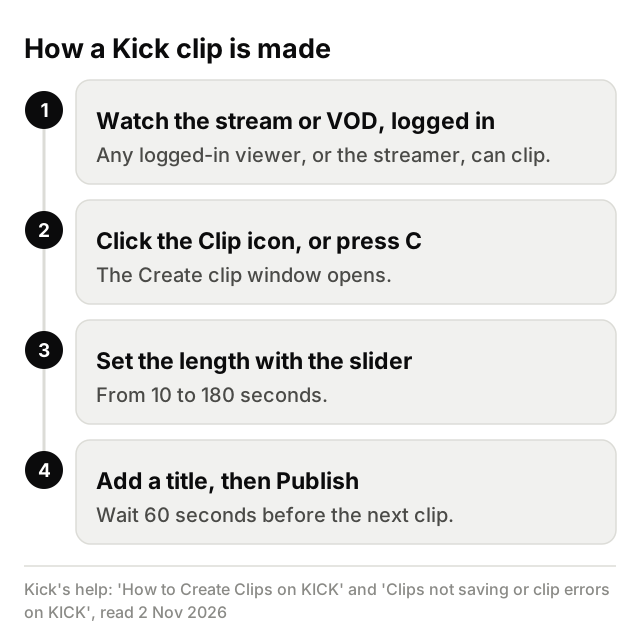
A Kick clip is a short video, 10 to 180 seconds long, made from a Kick livestream or VOD. Any logged-in viewer watching the stream can make one, and so can the streamer (Kick's help page "How to Create Clips on KICK", read 2 Nov 2026).
Kick's steps, from that page:
- Start watching a Kick livestream or VOD.
- Click the Clip icon, or press the keyboard shortcut
C. The Create clip window opens. - Drag the slider handles along the timeline to capture the moment you want. The length indicator shows your selection next to the maximum length available.
- Add a title that describes the clip.
- Click Publish. Kick generates and publishes the clip, and the button shows "Publishing to KICK" while it does.
After you publish, Kick's help (read 2 Nov 2026) gives two ways to share the clip. Chat sends it into the streamer's chat, though that option is "not available when clipping VODs". Clip Link copies the clip's link so you can share it on social platforms.
Can you clip a Kick VOD? Kick's how-to page says yes: "Can I Clip from a VOD? Yes, you can create Clips from VODs." Kick's troubleshooting page puts it differently, and the section on why you can't clip, below, quotes both.
How do you clip on Kick mobile? (Kick's help, read 2 Nov 2026)
Kick's help, read 2 Nov 2026, gives no in-app steps for making a clip on mobile. It says the Kick app "is available for free on both iOS and Android", and that clips have "a maximum length of 180 seconds (3 minutes) on both desktop and mobile". Its viewer's guide to the app covers watching clips (tap the Clips section, then any clip), not making them. So this guide doesn't guess at which button to tap.
How long can a Kick clip be, and who can clip? Kick's clipping rules (read 2 Nov 2026)
A Kick clip can be 10 to 180 seconds long. 180 seconds (3 minutes) is the maximum on both desktop and mobile, and you can shorten a clip with the slider when you preview it (Kick's help, read 2 Nov 2026).
Any logged-in viewer can clip, and so can the streamer. The same page sets two limits: "Clips cannot be created if you have been banned from the Streamer's chat room", and there's "a 60-second cooldown after creating one Clip before you can create another."
Kick's help (read 2 Nov 2026) gives no way to make one clip run past 180 seconds. Its troubleshooting page adds that clips "capture a fixed amount of stream time before and after the moment you clip", and that once a clip is made you can usually trim the start and end points, add or change the title, or delete it.
| Kick rule | What Kick's help says |
|---|---|
| Length | 10 to 180 seconds |
| Maximum on mobile | 180 seconds (3 minutes), the same as desktop |
| Who can clip | Any logged-in viewer, or the streamer |
| Cooldown | 60 seconds after one clip before you can make another |
| Chat ban | No clips if you're banned from the streamer's chat room |
| VODs | How-to page: you can clip VODs. Troubleshooting page: you can usually only clip from a live stream |
| After publishing | Share in chat (not for VODs) or copy the Clip link |
| Editing | Usually: trim the start and end, add or change the title, delete |
Kick can change these rules, so check its help before you plan around a number.
What can the streamer control? (Kick's help, read 2 Nov 2026)
Kick's help, read 2 Nov 2026, gives the streamer three controls over clips from their channel:
- They can turn clipping off: "Streamers can choose to turn clipping off for their channel. If clipping is off, no Viewer can clip from that stream."
- They can delete clips, and "Clips can only be deleted by the channel owner". That happens on the channel page's Clips tab (the three dots, then Delete) or in the Streamer Dashboard.
- They can report a clip that breaks Kick's Community Guidelines.
If a clip you made has gone, the streamer may have deleted it. Kick's help says "Streamers can delete Clips from their channel."
What doesn't Kick's help say about clipping? (read 2 Nov 2026)
The Kick help pages read on 2 Nov 2026 don't mention any of these, so this guide gives no rule for them:
- A follower-only or subscriber-only clip setting.
- A minimum account age for clipping.
- Steps for making a clip in the mobile app.
- A route to TikTok other than copying the Clip link and sharing it.
Why can't I clip on Kick? Kick's own reasons (read 2 Nov 2026)
Kick's help (read 2 Nov 2026) gives these reasons the Clip button may be missing or greyed out, or a clip won't go through:
- Clipping is turned off on the channel. If the streamer switched it off, no viewer can clip that stream.
- You're not logged in. Kick only lets logged-in accounts make clips.
- The stream just started. You may need to wait a short time after a stream begins.
- The streamer isn't live. Kick's troubleshooting page says "You can usually only clip from a live stream, not from past content."
- You're banned from the streamer's chat room, and banned viewers can't make clips.
- You made a clip less than a minute ago. Kick has a 60-second cooldown between clips.
If you're sure clipping should be available, Kick says to try refreshing the page or restarting the app.
On VODs, Kick's pages differ as of 2 Nov 2026. Its how-to page says "Yes, you can create Clips from VODs", and its VOD page says the same. Its troubleshooting page lists "The Streamer is not currently live" as a reason the button may be missing. Check Kick's help for its current wording.
Made a clip and can't see it? Kick's help says clips "can take a few minutes to process and become available". If a clip caught the wrong moment, it says to refresh your browser or device page so you're watching the most up-to-date stream, then make the clip again. If nothing helps, Kick's help points to its 24/7 Support Team at [email protected].
On someone else's channel, Kick's Clip button and these rules are what you have. Your own stream is a different case, covered at the end of this guide.
How do you post Kick clips on TikTok? For clips from your own channel (TikTok's help, read 2 Nov 2026)
Kick's help doesn't mention TikTok. The sharing route it does give is the Clip Link: after you publish a clip, you can "Copy the Clip link and share it across social platforms" (Kick's help, read 2 Nov 2026). This section is for clips from your own channel.
TikTok's help (read 2 Nov 2026) gives these upload steps in the app:
- Tap the Add post + button at the bottom.
- Record, then tap Continue. You can also upload a video from your device.
- Tap Next.
On the web (TikTok's steps 1, 2 and 5):
- Click Upload on the side panel.
- Click Select videos, then choose the file you'd like to upload.
- Adjust other settings, then click Post.
Both routes upload a video file from your device, so the file should be a clip of your own stream. TikTok's Community Guidelines (in force since 24 Sep 2026, read 2 Nov 2026) say "You should only post content you created or have the right to share."
If you'd rather turn a whole stream of yours into vertical clips, use a Kick clip maker for streams and VODs.
How do you clip your own Kick streams and VODs with JustClip?
Paste your Kick VOD link into JustClip, or paste your channel while you're live. JustClip clips your Kick stream while it's still live, and live clipping feels like real time. For a finished stream, paste the VOD. You can also upload a video file.
You get captioned vertical clips with written hooks, ranked best first, each with a "why this clip" note. On Twitch and Kick lives and VODs, the split layout is built around the streamer's camera or VTuber avatar, which AI finds in the frames.
Clipping uses credits, counted by the minute of footage (JustClip, as of 2 Nov 2026).
JustClip is for your own streams and videos, or footage you're allowed to clip: the creator's campaign or their written OK.
Clipping Kick streams for a campaign is a different job, and this guide doesn't cover it.
There are more ways to clip streams with AI beyond Kick. To try it on your own Kick stream, start your trial.