Clip other people's streams only with Twitch's own Clip button, under Twitch's rules. JustClip is for your own streams and videos, or footage you're allowed to clip: the creator's campaign or their written OK. This guide doesn't cover gambling or casino streams.
How long can a Twitch clip be? Up to 60 seconds (Twitch's help, read 29 Oct 2026)
A Twitch clip can be up to 60 seconds long. Twitch's help page "How to Create, Edit, and Share Clips" (read 29 Oct 2026) says you "adjust the length of the clip you'd like to create, up to 60 seconds, by using the slider underneath the video player." The slider sets the clip's length, and the page gives no way to go past 60 seconds.
A Twitch clip is a cut of a live stream or a past broadcast, made in Twitch's Clip Creator. The same help page doesn't give mobile a different time limit.
Can you clip longer than 30 seconds? Yes: the slider goes up to 60 seconds. Past 60 seconds the Clip button can't help: a longer cut is a Highlight, which the streamer makes from a past broadcast (next section).
How to make a clip, in Twitch's own steps (Twitch's help, read 29 Oct 2026):
- Click the clip icon on a live stream or a past broadcast to open the Clip Creator. On mobile, you may need to tap the video before the icon shows.
- Pick the moment and set the length with the slider, up to 60 seconds.
- Give the clip a title and click Publish.
On mobile, Twitch's help puts the Clip button at the top of the stream and says you can trim and title a clip while you make it.
Streamers get two extra tools on their own channel, per the same help page. During a live broadcast they can say "Twitch, Clip That" out loud, and Twitch makes a clip for them. In the Clips Manager they can re-edit the title, the trim and the portrait layout of any clip from their channel. Twitch saves clips in two formats, landscape and portrait.
How do you make a longer clip on Twitch? The streamer makes a Highlight from the past broadcast (Twitch's help, read 29 Oct 2026)
You can't increase clip length on Twitch past 60 seconds. Twitch's route to a longer cut is a Highlight: a video the streamer builds from segments of a past broadcast (a VOD) in Twitch's Highlighter. Twitch's help page "Creating Highlights and Stream Markers" (read 29 Oct 2026) says each segment is a block of content in the final Highlight, and several segments make a reel of the best parts of a broadcast in a single video.
Check one setting before you stream. Twitch's help page "On-Demand Content on Twitch" (read 29 Oct 2026) says that if the Store Past Broadcasts toggle is off, your past broadcasts won't be saved, and you won't be able to create Highlights or clips from them. You can only turn that setting on in the Creator Dashboard on web.
Twitch's steps for a Highlight, from its help (read 29 Oct 2026):
- Go to your Dashboard, click the Hamburger icon, then click Content and Video Producer.
- Click the drop-down in the top left-hand corner and select Past Broadcasts to filter the list.
- Click the Highlight button on the right-hand side of the broadcast you want. It opens the Highlighter.
- Set the segment: type the start and end timestamps, or use Start segment at the playhead and End segment at the playhead.
- Add more segments if you want a reel of several moments in a single video.
- Click Publish Highlights to publish every Highlight in your Highlight Queue.
Is there a Twitch highlight max length? Twitch's help (read 29 Oct 2026) doesn't state one. The limit it does give is about storage: there's a 100-hour storage limit across all Highlights and Uploads, unpublished ones included, and you may not be able to create new Highlights at or close to it.
Who does what, per Twitch's help (read 29 Oct 2026): the streamer makes the Highlight in the Video Producer, and editors help with the jobs around it. You and your editors can add stream markers during a live broadcast, or type /marker in chat, to timestamp moments for later highlighting. Editors can also help download, export and delete Highlights. Only the channel owner can add or remove the Editor role (Twitch's help page "Managing Roles for your Channel").
If you drop a marker when something happens on stream, the moment is easy to find later, when you set the Highlight's start and end.
Twitch clips vs highlights: who can make each, and how long does each run?
A clip runs up to 60 seconds, and logged-in viewers and streamers can make one if the streamer's Clips Settings allow. A Highlight has no stated length limit, and the streamer makes it from a past broadcast. The table sets the two side by side, and every cell comes from Twitch's help as we read it on 29 Oct 2026.
| Twitch rule | Clip | Highlight |
|---|---|---|
| Who makes it | Logged-in viewers and streamers, if the streamer's Clips Settings allow | The streamer, in the Video Producer; editors can add stream markers and help download, export and delete Highlights |
| How long it runs | Up to 60 seconds, set with the slider | No length limit stated; a 100-hour storage limit shared with Uploads |
| Made from | A live stream or a past broadcast | Past broadcasts, with Store Past Broadcasts on |
| Where you make it | The clip icon on the stream, on web or mobile | Dashboard, then Content, then Video Producer, then Highlight |
Twitch can change these rules, so check its help before you plan around a number.
Watching someone else's stream? What can a viewer do within the cap?
A viewer can make clips of up to 60 seconds with Twitch's Clip button, under Twitch's rules and the streamer's settings. Twitch's help (read 29 Oct 2026) says all logged-in viewers can clip a channel as long as the streamer has clips turned on in their Clips Settings, hasn't limited clipping (for example to followers or subscribers, or by follow time), and hasn't blocked you. If the streamer has turned clipping off for the channel, or for the category they're streaming, you can't make a clip there.
Here's what a viewer can do within those rules:
- Clip up to 60 seconds from the live stream or a past broadcast, then title it and publish it.
- On mobile, tap the video if the clip icon doesn't show, and trim and title the clip as you make it.
- Stay clear of the very start of a VOD: Twitch warns that clipping the first 1:30 may cause an error or unpredictable behavior.
- Want a moment longer than 60 seconds? That's the streamer's call. They make Highlights in their own Video Producer, from their past broadcasts.
Clip other people's streams only with Twitch's own Clip button, under Twitch's rules.
On your own channel, can you clip from the VOD instead of one 60-second moment?
JustClip is for your own streams and videos, or footage you're allowed to clip: the creator's campaign or their written OK.
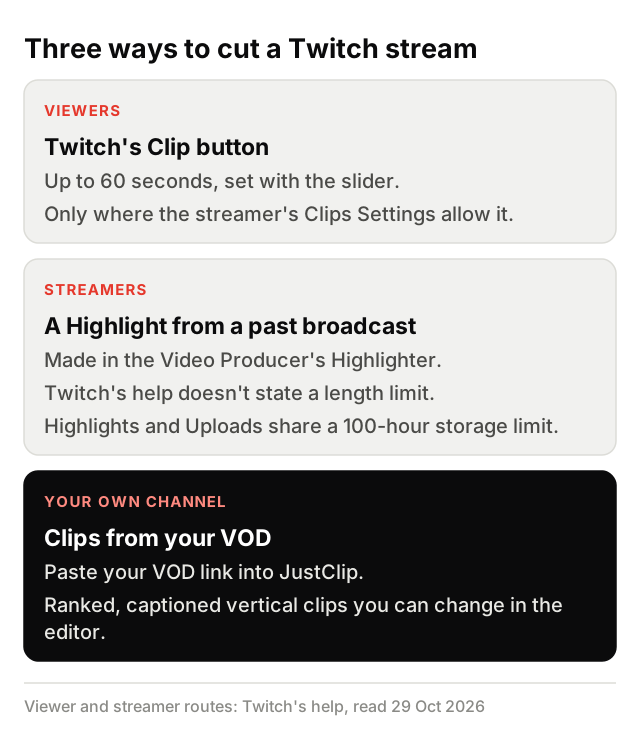
Yes. If the stream is yours, you don't have to clip it one 60-second moment at a time. You can clip from the VOD, not one moment: paste the past broadcast into JustClip and get captioned vertical clips with written hooks, ranked best first, each with a 'why this clip' note.
On Twitch lives and VODs, the split layout is built around the streamer's camera or VTuber avatar, which AI finds in the frames. You can change any clip in the multi-track editor.
Check two things before you paste. Each plan (Clipper, Pro, Studio) sets the longest single video it takes, so compare yours with the length of your broadcast. And clipping uses credits, counted by the minute of footage.
What do you paste? Your VOD link, or your channel while you're live
Paste the link to your past broadcast (a twitch.tv/videos/ link), or paste your channel while you're live and JustClip clips the stream as it runs. Live clipping feels like real time. You can also upload a video file instead of pasting a link.
There are more ways to clip streams with AI beyond the VOD route. To try it on your own Twitch stream, start your trial.