Your own streams and videos, or footage you're allowed to clip (the creator's campaign or their written OK).
This guide doesn't cover gambling or casino streams.
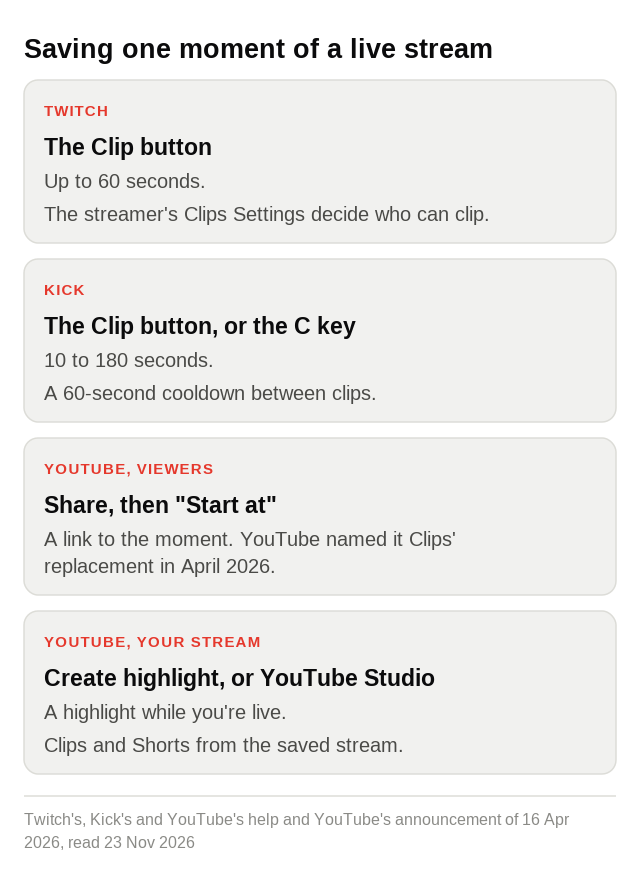
Clipping a live stream means saving one short moment of it, as a short video of its own or as a link that opens the video at that moment. Twitch, Kick and YouTube each do it differently. This guide is for viewers who want to keep a moment and for streamers who want clips of their own stream. The platform facts come from each platform's own help pages or announcement, read on 23 Nov 2026 and named in this page's sources, and where a page doesn't say something, this guide says so and doesn't guess. The table has the short version.
| Platform | Who can do it | How long | Where it's kept |
|---|---|---|---|
| Twitch: the Clip button | Logged-in viewers and the streamer, if the streamer's Clips Settings allow it | Up to 60 seconds | Saved in landscape and portrait. The streamer manages the channel's clips in Creator Dashboard, Content, Clips |
| Kick: the Clip button | Any logged-in viewer, or the streamer. Not if you're banned from the streamer's chat | 10 to 180 seconds, with a 60-second cooldown between clips | The channel page's Clips tab |
| YouTube, as a viewer: a Start at link | Viewers, from the Share menu under the video | A start time only, with no end time | Nothing is saved as a clip. It's a link to the video |
| YouTube, on your own channel: YouTube Studio | The channel's owner: Create highlight while live, the Clips and Shorts tool afterwards | You choose the part yourself | A separate video or Short on your channel |
How do you clip a live stream on Twitch? The Clip button (Twitch's help, read 23 Nov 2026)
To clip a live stream on Twitch, click the clip icon on the player. A Twitch clip runs up to 60 seconds and is cut from a live stream or a past broadcast in Twitch's Clip Creator. Twitch saves each one in two formats, landscape and portrait (Twitch's help page How to Create, Edit, and Share Clips, read 23 Nov 2026). The steps, from that page:
- Click the clip icon on a live stream or a past broadcast. The Clip Creator opens. On mobile, the Clip button is at the top of the stream, and you may need to tap the video before the icon shows.
- Set the clip's length with the slider under the video player, up to 60 seconds.
- Give the clip a title and click Publish.
Any logged-in viewer or streamer can clip a channel on Twitch, as long as the streamer has enabled clips in their Clips Settings, hasn't limited clipping to followers or subscribers, and hasn't blocked you (the same help page, read 23 Nov 2026). On your own stream you can also say Twitch, Clip That out loud during the broadcast, and Twitch makes the clip for you. You manage your channel's clips in Creator Dashboard, then Content, then Clips. Twitch's help doesn't state a minimum clip length or how far back a clip can reach, so this guide gives neither.
How do you clip one moment on Kick? (Kick's help, read 23 Nov 2026)
To clip a moment on Kick, click the Clip icon or press C while you watch a livestream or a VOD (a past stream's replay). The Create clip window opens: set the length with the slider, add a title and click Publish. A Kick clip is a short video, 10 to 180 seconds long, made from a Kick livestream or VOD. Any logged-in viewer watching the stream can make one, and so can the streamer (Kick's help page How to create clips on KICK, read 23 Nov 2026).
The same page sets two limits: you can't clip if you've been banned from the streamer's chat room, and after one clip there's a 60-second cooldown before you can make the next. Clips sit on the channel page's Clips tab, and only the channel owner can delete them. The full steps, and what to check when the button isn't there, are in Kick's Clip button, step by step.
Can you clip a YouTube live stream? Share at Timestamp and YouTube Studio (YouTube's own pages, read 23 Nov 2026)
Can you clip live streams on YouTube? On your own channel, yes. As a viewer, since YouTube's April 2026 announcement, you share a link to a moment instead of making a Clip. YouTube's own pages (read 23 Nov 2026) give three routes, one for viewers and two for the streamer:
- Viewers get a Start at link from the Share menu.
- The streamer, while live, uses Create highlight in YouTube Studio.
- The streamer, after the stream, uses the Clips and Shorts tool in YouTube Studio, on the existing video.
The change for viewers came in a Help Community post dated 16 Apr 2026. YouTube said Share at Timestamp would become the main way to share a moment of a video, "replacing the Clips feature" (YouTube's announcement Updating how you share video moments, read 23 Nov 2026). The same post says Clips that already exist stay viewable, and that a shared moment no longer carries an end time or a custom description.
YouTube's help article Learn about managing Clips, read the same day, hasn't been rewritten and still prints the older viewer steps, so this guide doesn't teach them. The change itself is covered in what replaced YouTube's Clip button.
As a viewer, how do you share a moment of a YouTube video?
Share at Timestamp is a link that opens a video at the moment you pick. It goes by two names: YouTube's help calls the option Start at, and YouTube's announcement of 16 Apr 2026 calls the feature Share at Timestamp. The link has no end time, and nothing is saved as a separate clip. On a computer, YouTube's help page Share videos and channels (read 23 Nov 2026) gives these steps:
- Under the video, click Share.
- Tick Start at and enter the start time.
- Copy the link.
On an iPhone or iPad, move to the moment, tap Share and turn on the minute-and-second toggle. YouTube's help (read 23 Nov 2026) doesn't say whether Start at works while a stream is still live.
On your own stream, how do you make a highlight while you're still live?
YouTube's help describes a highlight as a shorter, edited version of a live stream. You can create one while you're streaming, or edit it after you've finished (YouTube's help page Create a highlight, read 23 Nov 2026). YouTube's help page Archive live streams, read the same day, also says you can create highlight clips while your stream is still live. The steps on the highlight page:
- Open YouTube Studio, click Create, then Go live, and start a stream.
- When something interesting happens, add a stream marker.
- At the top, click Create highlight.
- Trim the video to the part you want to highlight.
- Enter a title, set the privacy and add a description.
- Click Create. YouTube publishes the video automatically.
After the stream, how do you cut a clip in YouTube Studio?
The Clips and Shorts tool in YouTube Studio cuts a separate video clip or a Short out of an existing video on your channel (YouTube's help page Video Clips & Shorts in YouTube Studio, read 23 Nov 2026). The page lists these steps:
- In YouTube Studio, open Content, then Videos, and click the existing video.
- In the left-hand menu, select Clips and Shorts.
- Click Create clip or Short and choose Video clip or Short.
- Pick the part from the transcript, or enter its timestamps.
- Create the draft and finish the upload.
That help page speaks of an existing video and doesn't mention live streams, and it states no length limit for the tool. YouTube's announcement of 16 Apr 2026 says Video Clips in Studio works on longer videos and archived live streams, and the Clips help article says you can clip a portion of your video or live stream in YouTube Studio. The announcement also said that, later in 2026, YouTube would bring Video Clips to Shorts and launch auto-suggestions for clippable moments. On 23 Nov 2026 the help page lists a Short option and, in select countries and languages, AI-powered suggestions.
How do you make YouTube Shorts from a live stream?
YouTube's help (read 23 Nov 2026) gives two routes of its own. The first is on mobile: after a live stream from the app, the recap can offer a Short highlight video, pulled automatically from the stream (Create a live stream on mobile). If you save it, it goes into your video list as a private video by default, and YouTube notes that the option may depend on the stream's eligibility. The second is the Clips and Shorts tool in YouTube Studio with Short chosen: pick the part, click Preview Short, then Create Draft, and complete the upload.
For your own stream there's one more route, a live clipper, covered further down.
YouTube live still processing, or not saved? What YouTube's help says (read 23 Nov 2026)
Do YouTube live streams get saved? Yes, if the stream is shorter than 12 hours: YouTube's help page Archive live streams (read 23 Nov 2026) says YouTube can archive it for you automatically, and that this covers encoder, webcam and mobile streams. If a stream runs past 12 hours, the same page warns that it may not be captured at all.
As for how long YouTube live processing takes, YouTube's help doesn't give a time. None of the YouTube help pages read on 23 Nov 2026 says how long a finished live stream takes to process, and none explains the messages still processing, processing will begin shortly or within 24 hours. So you won't find a time here, or a guess at what each message means.
If your stream isn't where you expect it, YouTube's help pages (each read 23 Nov 2026) do say this much:
- The archive is in YouTube Studio, under Content, on the Live tab, and you can change its visibility there (Archive live streams).
- On mobile, tapping Finish creates an archive of the stream on your channel. For smaller channels, the archived stream is set to private by default (Create a live stream on mobile).
- DVR is the feature that lets viewers pause and rewind during a live stream. With DVR off, viewers can't seek back while you're streaming, but they can still see a recording of the whole stream once it's available (Turn on DVR on live streams).
- On streams over 12 hours, DVR may be limited or unavailable, on top of the archive warning above (Turn on DVR on live streams).
YouTube's help doesn't put a time on when you can clip a finished YouTube live stream either. It ties clipping to the video: the Clips and Shorts tool is described for an existing video (Video Clips & Shorts in YouTube Studio, read 23 Nov 2026), and the Clips help article, which still describes the older viewer Clips, says a Clip made from a live shows up after the stream has finished and is uploaded as a video (Learn about managing Clips, read 23 Nov 2026).
For next time, YouTube recommends recording a local archive as a backup (Archive live streams, read 23 Nov 2026), so keep your own recording of every stream. Or clip while you stream, with Create highlight in YouTube Studio or a live clipper on your own stream.
How do you clip your whole stream while it's still live?
Your own streams and videos, or footage you're allowed to clip (the creator's campaign or their written OK).
A live clipper is a tool that takes a stream's link and cuts clips from the stream while it's still running. The platform tools above save one moment at a time. To get clips of your whole stream while it's still live, give the stream's link to an AI live stream clipper. In JustClip, the tool this blog belongs to, it goes like this on your own stream (as of 23 Nov 2026):
- Open your stream's link. For Twitch or Kick, that's your channel link. For YouTube, it's the live stream's own link, the one for that broadcast. A YouTube channel page won't do.
- Paste it into JustClip. JustClip clips the stream while it's still live, and live clipping feels like real time.
- Pick the layout. JustClip asks for a layout right after you paste. On Twitch and Kick lives and VODs, the split layout is built around the streamer's camera or VTuber avatar, which AI finds in the frames.
- Get your clips. You get captioned vertical clips with written hooks, ranked best first, each with a 'why this clip' note.
- Change any clip, then export. Open a clip in the editor, change what you want, then export it.
One plan detail before you paste: YouTube links, a live stream's included, are taken on Pro, Studio and pack-only accounts. On Clipper you upload the file, which for a live stream means your recording once it has ended. Clipping uses credits, counted by the minute of footage, and a YouTube link costs more credits a minute than a Twitch or Kick link.
Missed it live? How do you clip the replay?
If the stream is over, clip the recording. The platforms' own tools work here too, per their help pages read on 23 Nov 2026: Twitch's clip icon works on a past broadcast, Kick lets you clip from VODs, and YouTube Studio's Clips and Shorts tool cuts from an existing video.
For clips of the whole replay, JustClip (as of 23 Nov 2026) takes a Twitch or Kick VOD link, a YouTube replay link on Pro, Studio and pack-only accounts (on Clipper you upload the file), or your own recording, uploaded. The rule on whose footage you can clip applies here too. For Twitch, there's a full walkthrough of how to clip a Twitch VOD after the stream.
Which route you take comes down to what you're saving. One moment is a job for the Clip button on Twitch or Kick, and on YouTube for a Start at link, Create highlight or the Clips and Shorts tool. Every moment of your own stream takes a live clipper while you're live, or the replay afterwards. To get clips from your own next stream, start your trial.